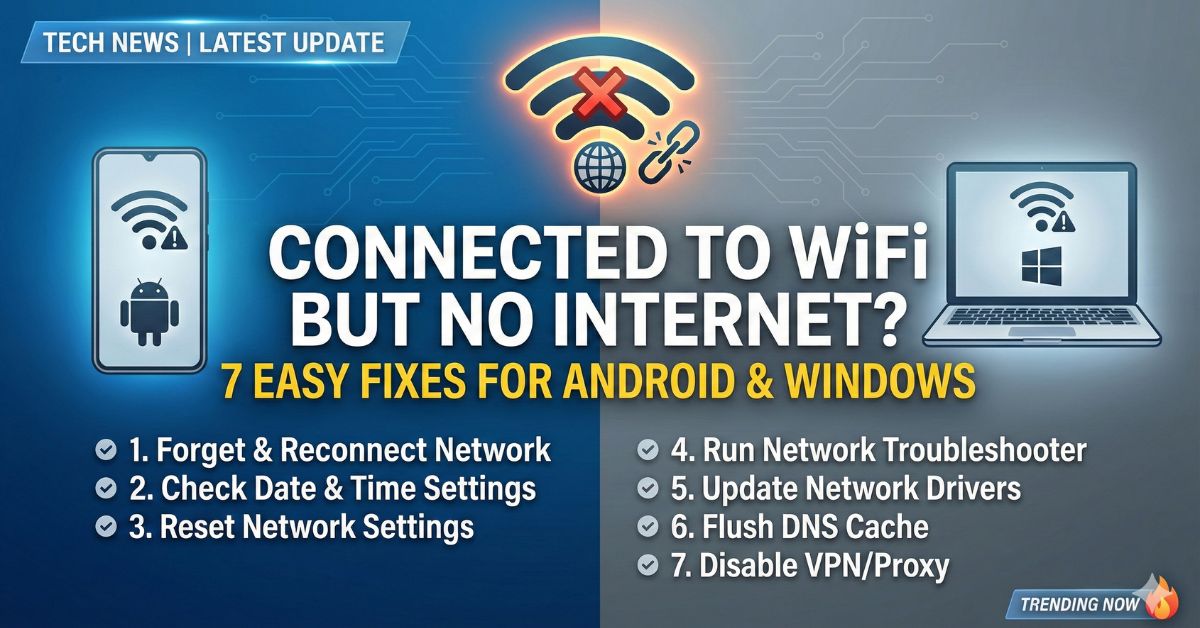
We have all been there. You see the strong WiFi signal icon on your phone or laptop, but when you open WhatsApp, messages don’t send. You try to load a webpage, and it says “No Internet Connection.”
It is frustrating, especially when you are in the middle of a Zoom call, watching a cricket match on Hotstar, or making a UPI payment. In India, where many of us rely on JioFiber, Airtel Xstream, or BSNL broadband, this “Connected, no internet” error is very common.
This guide will explain why this happens and give you 7 simple steps to fix it immediately without calling a technician
Why Does This Happen?
Before we fix it, let’s understand why your device says it is connected but has no data.
Step 1: The “10-Second Restart” Rule
It sounds too simple, but 90% of the time, this works. Electronic devices get “tired” or stuck in a loop.
- Switch off your router from the main power plug.
- Wait for 30 seconds. This drains the leftover power and clears the short-term memory of the router.
- Switch it back on and wait for 2 minutes until all lights stabilize.
- Restart your phone/laptop as well.
Check the Lights:
- JioFiber: If the light is blinking red, there is a signal issue (cable cut or backend fault).
- Airtel Xstream: A steady red or blinking DSL light means no internet.
- BSNL: Look for the “Internet” or “Link” light. If it is off, the line is dead.
Step 2: Forget and Reconnect the Network
Sometimes your phone holds onto old, corrupted settings for your WiFi network. You need to refresh it.
For Android:
- Go to Settings > WiFi.
- Tap on your WiFi name (or the ‘i’ icon/gear icon).
- Select “Forget Network”.
- Scan again, tap your WiFi name, and enter the password to reconnect.
For iPhone (iOS):
Step 3: Check Your Date and Time
This is a hidden trick. If your phone thinks it is the year 2020 or a different month, Google and other secure servers will block your access for security reasons.
Step 4: Check for Internet Outages
If restarting didn’t help, the problem might be with your provider.
Step 5: Change Your DNS Settings (Advanced Fix)
Sometimes the “phonebook” of the internet (DNS) provided by your ISP stops working. You can switch to Google’s free phonebook. This often boosts speed too.
On Android:
- Go to Settings > Network & Internet > WiFi.
- Tap the gear icon next to your WiFi.
- Tap the Pencil icon (Modify) or Advanced Options.
- Change IP Settings from DHCP to Static.
- Scroll down to DNS 1 and type:
8.8.8.8 - In DNS 2, type:
8.8.4.4 - Save and reconnect.
On Windows PC:
- Press
Win + R, typencpa.cpl, and hit Enter. - Right-click your WiFi adapter > Properties.
- Double-click Internet Protocol Version 4 (TCP/IPv4).
- Select “Use the following DNS server addresses”:
- Preferred:
8.8.8.8 - Alternate:
8.8.4.4
- Preferred:
- Click OK.
Step 6: Login to Router Page (For “Action Required” Errors)
Sometimes you see a notification saying “Sign in to network”. This usually happens when:
- You have exceeded your data limit (FUP).
- Your bill is pending.
- The ISP requires a manual login.
Click that notification. It will take you to the ISP’s portal where you can see the specific error message
Step 7: Reset Network Settings
Do this only if nothing else works. This will delete all saved WiFi passwords and Bluetooth pairings, but it gives your phone a fresh start.
- Android: Settings > System > Reset Options > Reset WiFi, Mobile & Bluetooth.
- iPhone: Settings > General > Transfer or Reset iPhone > Reset > Reset Network Settings.
Conclusion: What Next?
If you have tried all 7 steps and still see “Connected, no internet,” the issue is likely a physical cable fault outside your home or a damaged router.
Your Next Step: Call your customer care (198 or 121 for most Indian providers) and raise a “Ticket”. Ask them specifically to “reset the MAC binding” from their end—this technical trick often solves stubborn connection issues instantly
Frequently Asked Questions (FAQs)
Q1: Why is my WiFi connected but YouTube is not working?
A: This means your phone is talking to the router, but the router isn’t talking to the internet. Restart your router first. If that fails, check if your internet plan has expired.
Q2: What does the red light on my Jio router mean?
A blinking red light usually means the optical fiber cable carrying the internet to your home is broken or loose. You will likely need a technician to fix the wire.
Q3: Can a VPN cause no internet?
Yes! If you use a free VPN app, it might be stuck trying to connect. Turn off your VPN completely and try browsing again.
Q4: Is 5GHz WiFi better than 2.4GHz for this problem?
5GHz is faster but has a shorter range. If you are far from the router, your phone might struggle to keep a stable data link on 5GHz. Try switching to the 2.4GHz network.
Q5: How do I know if my router is broken? A
A: If the power light doesn’t turn on, or if you reset it and it still doesn’t broadcast any WiFi name (SSID), the hardware might be faulty.